
Work From Home and Your Eyes: Setting Up Your Workspace for Visual Comfort
Remote work has dramatically increased screen time for millions of people — and eye strain, headaches, and dry eye have followed. Here is how to set up your home workspace to protect your eyes and stay comfortable all day.

Work From Home and Your Eyes: Setting Up Your Workspace for Visual Comfort
The shift to remote work has been one of the most significant changes in how people use their eyes. Where office workers once had ergonomically designed workstations, IT-managed monitor setups, and natural breaks from screen use, remote workers often find themselves hunched over laptops at kitchen tables, working in poor lighting, and spending 8–10 hours per day in front of screens without the natural interruptions that office life provides.
The result has been a significant increase in digital eye strain — also called computer vision syndrome — along with headaches, neck pain, dry eye, and blurred vision. The good news: most of these problems are preventable with the right workspace setup and habits.
The 20-20-20 Rule: Your Most Important Tool
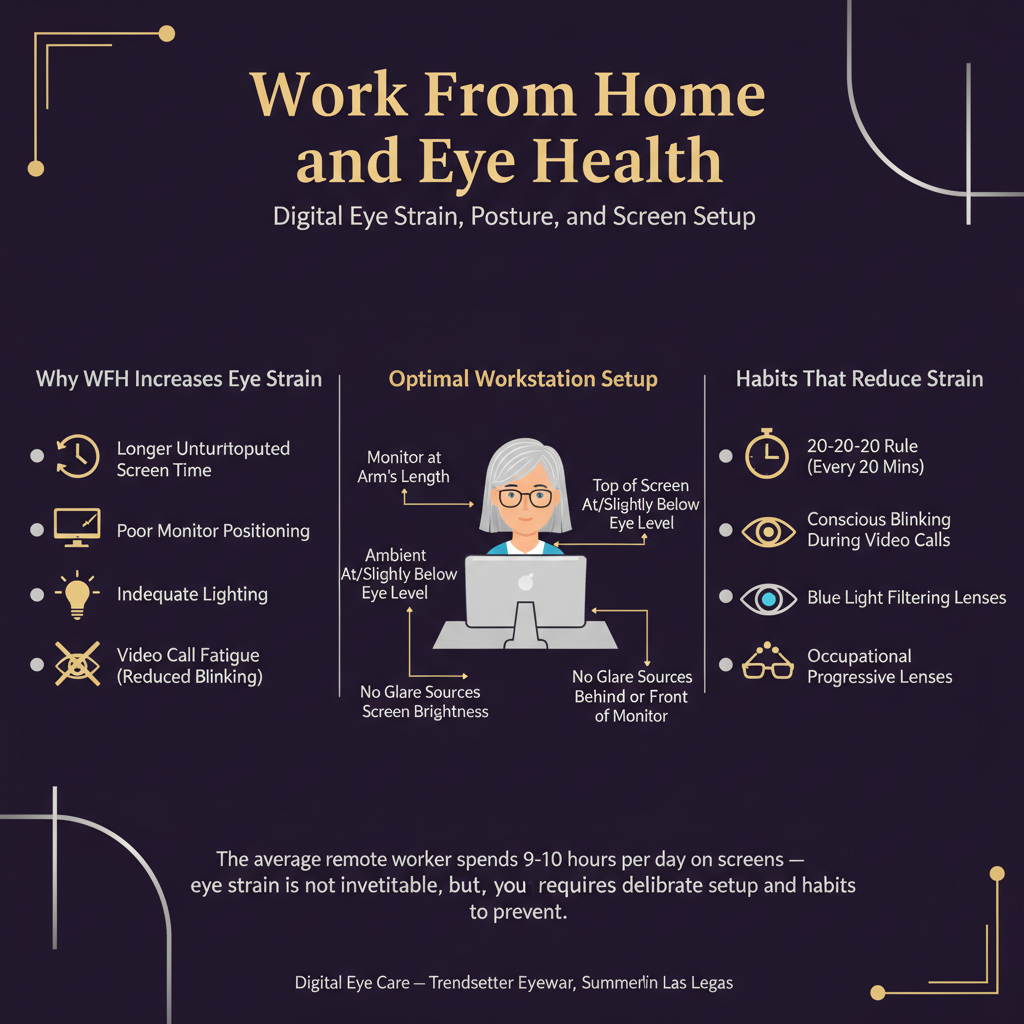
The average remote worker spends 9–10 hours per day on screens — eye strain is not inevitable, but it requires deliberate setup and habits to prevent. The 20-20-20 rule is the single most effective habit, but it only works if the workstation setup is not actively fighting against you.
Before getting into workspace setup, the single most effective intervention for digital eye strain is the 20-20-20 rule: every 20 minutes, look at something at least 20 feet away for at least 20 seconds.
This does two things: it gives the ciliary muscles (which control focusing) a rest from sustained near focus, and it stimulates blinking — which drops to 60–70% of normal during screen use, contributing significantly to dry eye symptoms.
Set a timer. Make it a habit. It takes 20 seconds and makes a measurable difference.
Monitor Setup
Distance
Your monitor should be approximately arm's length away — roughly 20–28 inches from your eyes. Closer than this forces the focusing muscles to work harder; further than this may cause you to lean forward, creating neck and shoulder strain.
Height
The top of the monitor should be at or slightly below eye level. This positions your gaze slightly downward — the natural resting position for the eyes — and reduces the amount of exposed ocular surface, which reduces tear evaporation and dry eye symptoms.
Avoid positioning the monitor above eye level, which forces you to look up, increases exposed ocular surface, and strains the neck.
Tilt
Tilt the monitor slightly backward (10–20 degrees) so the screen is perpendicular to your line of sight. This reduces reflections and ensures you are looking at the screen at a natural angle.
Laptop Users
Laptops are ergonomically problematic: the screen is too low and too close when the keyboard is at a comfortable height. Use an external keyboard and mouse, and raise the laptop on a stand to bring the screen to the correct height. This is one of the most impactful changes a laptop user can make.
Lighting
Reduce Glare
Glare from windows or overhead lights reflecting off your screen is a significant source of eye strain. Position your monitor so that windows are to the side — not directly behind or in front of you. Use blinds or curtains to control window glare.
A matte screen protector reduces reflections from the screen surface itself.
Match Screen Brightness to Ambient Light
Your screen should not be dramatically brighter or darker than the surrounding environment. In a bright room, increase screen brightness; in a dim room, reduce it. The goal is that the screen does not appear to glow relative to its surroundings.
Avoid Working in the Dark
Working on a bright screen in a completely dark room creates extreme contrast that fatigues the visual system. Keep ambient lighting at a moderate level — not so bright that it creates glare, not so dark that the screen dominates.
Blinking and Dry Eye
As mentioned, blink rate drops dramatically during screen use. In Las Vegas's dry climate, this is particularly problematic — the combination of reduced blinking and low humidity creates ideal conditions for dry eye symptoms.
Strategies to maintain tear film health during screen work:
- Conscious blinking — Periodically remind yourself to blink fully (not just a partial blink)
- Preservative-free artificial tears — Use as needed throughout the day; keep them at your desk
- Humidifier — Adding a humidifier to your workspace can meaningfully reduce tear evaporation in Las Vegas's dry air
- Reduce air conditioning drafts — Direct airflow across the eyes accelerates evaporation; position yourself away from vents
Your Prescription Matters
An outdated or incorrect prescription is one of the most common and most overlooked causes of digital eye strain. Even a small refractive error that is easily compensated in everyday life can cause significant fatigue during sustained screen use.
If you have not had an eye exam in the past year and are experiencing screen-related symptoms, an updated prescription may resolve the problem entirely.
Occupational progressive lenses — designed with a wider intermediate zone for computer use — are worth considering for patients over 40 who spend significant time at a computer.
When to See an Eye Doctor
See an eye doctor if:
- Eye strain, headaches, or blurred vision persist despite workspace improvements
- You notice double vision, particularly during screen use
- Symptoms are accompanied by dizziness or difficulty concentrating (may suggest binocular vision dysfunction — see our guide to BVD)
- Dry eye symptoms are affecting your work productivity
Call (702) 479-5222 or schedule an appointment at Trendsetter Eyewear in Summerlin, Las Vegas. We will assess your vision, check for binocular vision issues, and help you find the right solution for comfortable, productive screen work.
Explore Topics
Written by
Dr. Cynthia Payne, OD
Content creator and writer sharing insights and stories.


